
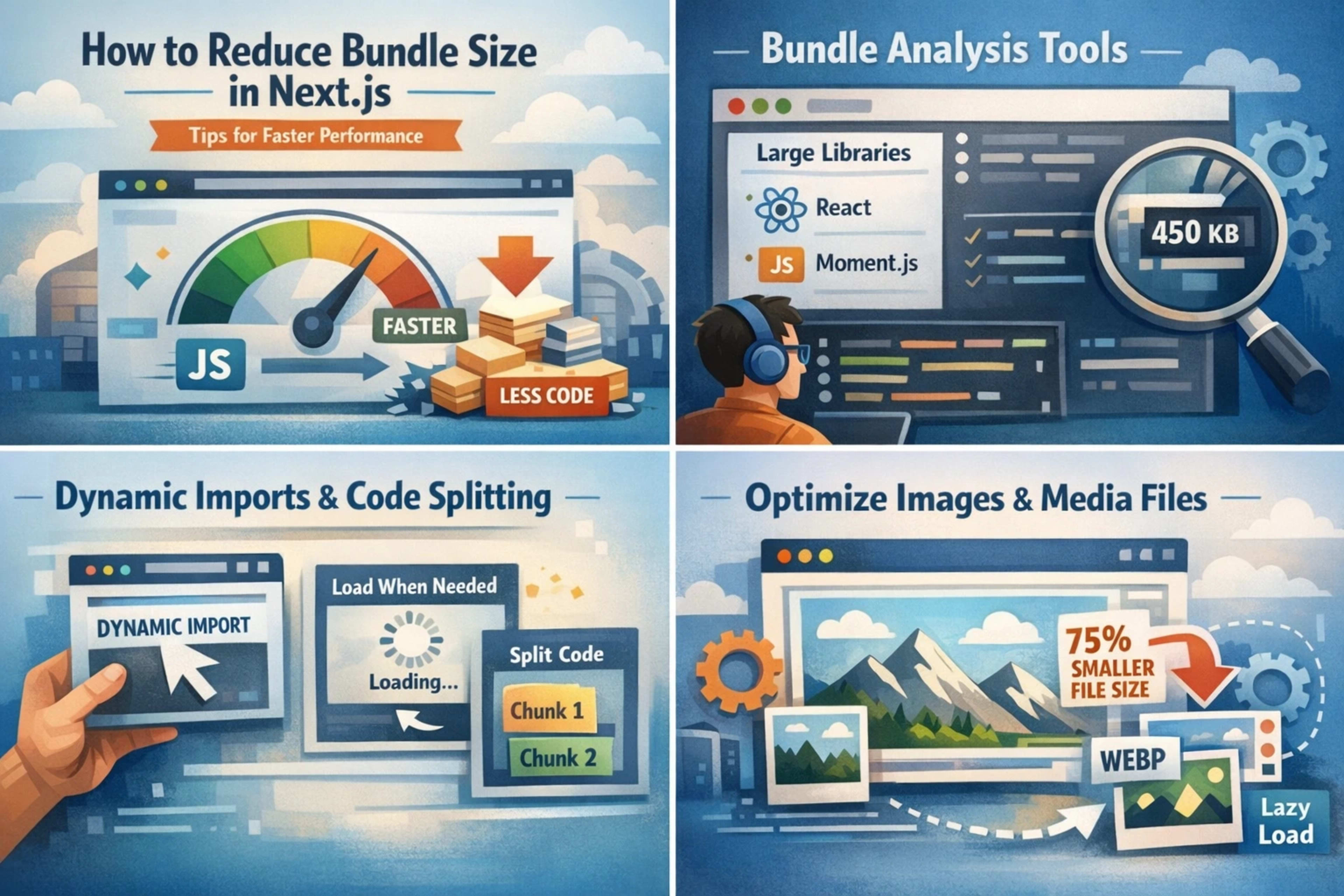
In the fast-paced world of web development, performance is paramount. Users expect lightning-fast loading times, and search engines like Google prioritize websites that deliver a seamless experience. For developers using the powerful Next.js framework, optimizing bundle size is a critical step towards achieving these goals. A smaller bundle size translates directly to faster download times, quicker parsing and execution of JavaScript, and ultimately, a more responsive and enjoyable user experience. This guide will dive deep into the various strategies and techniques you can employ to significantly reduce your Next.js application's bundle size, ensuring your application shines in terms of both speed and efficiency.
The impact of a large JavaScript bundle can be substantial. According to HTTP Archive, the median JavaScript payload for mobile sites is around 1.1 MB, and for desktop sites, it's closer to 2.2 MB. [1] This can lead to slow initial page loads, especially on slower networks or less powerful devices, potentially causing users to abandon your site before it even renders. Next.js, with its built-in features like server-side rendering (SSR) and static site generation (SSG), already provides a strong foundation for performance. However, without careful consideration, the added JavaScript can still bloat your application. Understanding how Next.js bundles your code and identifying areas for optimization is the first step towards a leaner, faster application.
Understanding Next.js Bundling
Before we can effectively reduce bundle size, it's essential to understand how Next.js handles JavaScript bundling. Next.js leverages Webpack (or a similar build tool) under the hood to process your application's code. During the build process, Webpack takes all your JavaScript modules, dependencies, and assets, and bundles them into a set of optimized files that the browser can understand.
Key concepts to grasp include:
Code Splitting: Next.js automatically performs code splitting. This means that instead of delivering one massive JavaScript file for your entire application, it intelligently breaks down your code into smaller chunks. These chunks are then loaded on demand, meaning only the JavaScript necessary for the current page is downloaded initially. This is a fundamental feature that significantly aids in performance.
Tree Shaking: This is a process where unused code is eliminated from your final bundle. If you import a library but only use a specific function from it, tree shaking should ideally remove the parts of the library you're not using. Modern JavaScript bundlers like Webpack are quite effective at this, but it requires your code to be written in a way that allows for static analysis (e.g., using ES Modules).
Client-Side vs. Server-Side JavaScript: Next.js distinguishes between JavaScript that needs to run on the server (for SSR) and JavaScript that runs in the browser (for interactivity). Optimizing both aspects is crucial.
Strategies for Reducing Bundle Size
Now, let's explore the actionable strategies you can implement to trim down your Next.js application's bundle size.
1. Optimize Your Dependencies
Dependencies are often the biggest contributors to your JavaScript bundle. Every npm install or yarn add brings in code that, if not managed carefully, can significantly increase your application's footprint.
a. Audit Your Dependencies
Regularly review your project's dependencies. Are you using all the libraries you've installed? Are there any redundant packages? Tools like npm-check-updates or yarn-upgrade-interactive can help you identify outdated packages, but for auditing usage, you might need to manually check or use more advanced tools.
Consider using tools like depcheck to identify unused dependencies. [2] This simple command-line tool scans your project and reports dependencies that are not imported anywhere in your code.
npx depcheck
If depcheck flags a dependency as unused, investigate whether it's truly unnecessary. Sometimes, dependencies might be used indirectly or for build scripts, so a manual verification is always recommended.
b. Choose Lightweight Alternatives
When selecting libraries, opt for those with smaller bundle sizes. For example, instead of importing an entire UI component library like Material-UI or Ant Design, consider using smaller, more focused libraries for specific needs, or even building your own components if the scope is limited.
Date Pickers: Instead of a full-featured date picker library, consider a more minimal one like
react-datepickerif you don't need all the bells and whistles.Icons: Instead of a large icon font library, consider using SVG icons directly or a smaller SVG icon package like
react-icons.State Management: For simpler applications, React's built-in
Context APIanduseState/useReducerhooks might suffice, avoiding the need for heavier state management libraries like Redux or Zustand if not absolutely necessary.
c. Import Only What You Need
This is a fundamental principle enabled by ES Modules and well-supported by bundlers. When importing from a library, make sure you're only importing the specific components or functions you require.
Example with Lodash: Instead of:
import _ from 'lodash';
_.debounce(...);
Do:
import debounce from 'lodash/debounce';
debounce(...);
This ensures that only the
debouncefunction (and its dependencies) is included in your bundle, not the entire Lodash library.Example with Material-UI: Instead of:
import { Button, TextField } from '@mui/material';If you only need
Button:import Button from '@mui/material/Button';Note: Modern versions of popular libraries often have better default import structures, but it's always good practice to verify.
d. Utilize Package Bundlers/Analyzers
Tools like webpack-bundle-analyzer are invaluable for visualizing what's inside your JavaScript bundles. After running a build, this tool generates an interactive treemap that shows the size of each module and dependency.
To use it with Next.js, you can install it as a dev dependency:
npm install --save-dev webpack-bundle-analyzer
# or
yarn add --dev webpack-bundle-analyzer
Then, you can configure your next.config.js to integrate it:
// next.config.js
const withBundleAnalyzer = require('@next/bundle-analyzer')({
  enabled: process.env.ANALYZE === 'true',
});

module.exports = withBundleAnalyzer({
  // Your Next.js configuration options here
});
Now, you can run your build with the ANALYZE environment variable set:
ANALYZE=true npm run build
# or
ANALYZE=true yarn build
This will open a browser window displaying the bundle analysis, allowing you to pinpoint the largest contributors and make informed decisions about optimization.
2. Optimize Your Own Code
Beyond dependencies, your application's own code can also contribute significantly to bundle size.
a. Dynamic Imports (next/dynamic)
Next.js's next/dynamic allows you to perform dynamic imports, which is a form of code splitting. This is particularly useful for components that are not immediately needed on the initial page load, such as:
Modals
Off-canvas menus
Heavy UI components used only in specific user interactions
Third-party widgets or embedded content
By dynamically importing these components, you ensure that their JavaScript is only fetched and executed when they are actually rendered.
import dynamic from 'next/dynamic';

const HeavyComponent = dynamic(() => import('../components/HeavyComponent'), {
  loading: () => <p>Loading...</p>, // Optional loading component
  ssr: false, // Disable SSR for this component if it only needs client-side rendering
});

function MyPage() {
  const [showHeavy, setShowHeavy] = useState(false);

  return (
    <div>
      <button onClick={() => setShowHeavy(true)}>Show Heavy Component</button>
      {showHeavy && <HeavyComponent />}
    </div>

  );
}
Setting ssr: false is important if the component relies solely on browser APIs or client-side interactions and doesn't need to be rendered on the server. This prevents its code from being included in the server-rendered HTML and ensures it's only loaded on the client.
b. Route-Based Code Splitting
Next.js automatically handles route-based code splitting. Each page in your pages directory becomes a separate JavaScript chunk. This means that when a user navigates to /about, only the JavaScript for the /about page (and its shared dependencies) is loaded, not the JavaScript for /contact or /products.
Ensure you are leveraging this by:
Keeping pages focused: Avoid putting all your application logic into a single large page. Break down features into separate pages or use dynamic imports within pages.
Minimizing shared dependencies across unrelated routes: If two routes share very little code, ensure their bundles are distinct.
c. Remove Unused Code (Dead Code Elimination)
While tree shaking is powerful, it's not always perfect, especially with dynamic imports or certain coding patterns. Manually review your code for:
Unused imports: Delete imports that are no longer referenced.
Unused variables, functions, and components: Refactor your code to remove any code that doesn't serve a purpose. Linters like ESLint can help identify some of these patterns.
Conditional rendering logic: Ensure that code within
ifstatements or other conditional blocks is only included if that condition is likely to be met in a production environment.
d. Optimize Images and Assets
While not strictly JavaScript bundle size, large images and other assets can significantly impact perceived performance and overall page weight. Next.js provides an next/image component that offers automatic image optimization:
Resizing: Images are resized to the appropriate dimensions for the user's viewport.
Format Conversion: Images can be automatically converted to modern formats like WebP for smaller file sizes.
Lazy Loading: Images are lazy-loaded by default, meaning they are only loaded when they are about to enter the viewport.
import Image from 'next/image';
import profilePic from '../public/me.png';

function Profile() {
  return (
    <Image
      src={profilePic}
      alt="Picture of the author"
      // width and height are required for optimization
      width={500}
      height={500}
    />
  );
}
For other assets like fonts and SVGs, ensure they are optimized and served efficiently. Consider using next/font for optimized font loading.
3. Leveraging Next.js Configuration
Next.js offers several configuration options in next.config.js that can influence bundle optimization.
a. Compression
Ensure your server is configured to serve compressed assets (Gzip or Brotli). Next.js typically handles this automatically when deployed to platforms like Vercel or Netlify, which have built-in compression. If you're self-hosting, ensure your web server (e.g., Nginx, Apache) is configured for compression.
b. SWC Minifier
Next.js uses SWC (Speedy Web Compiler) as its default JavaScript/TypeScript compiler and minifier. SWC is known for its speed and efficiency. Ensure you are using it by default (which Next.js does). You can verify this in your next.config.js:
// next.config.js
module.exports = {
  compiler: {
    // Enables the styled-components SWC plugin
    styledComponents: true, // or false
    // Enables the emotion SWC plugin
    emotion: true, // or false
    // Enables React Server Components transform
    serverComponents: true, // or false
  },
  // ... other configurations
};
The SWC compiler itself is highly optimized and contributes to faster builds and more efficient code.
c. Disabling Unused Features
If you are not using certain Next.js features, ensure they are not inadvertently enabled or contributing to your bundle. For example, if you are not using React Server Components, ensure that feature is not enabled unless intended.
4. Third-Party Scripts and Analytics
External scripts, especially those for analytics, ads, or chat widgets, can significantly bloat your bundle and slow down your page.
Load scripts conditionally: Load non-essential third-party scripts only when they are needed (e.g., after user interaction or on specific pages).
Use lightweight alternatives: For analytics, consider privacy-focused and lightweight options.
Defer script loading: Use the
deferattribute for script tags to ensure they don't block HTML parsing. Next.js'snext/scriptcomponent offers better control over script loading strategies.
import Script from 'next/script';

function MyPageWithAnalytics() {
  return (
    <div>
      {/* ... your page content ... */}
      <Script
        src="https://example.com/analytics.js"
        strategy="lazyOnload" // Loads after the page is idle
        data-domain-script="123456789"
      />
    </div>

  );
}
The next/script component offers several strategies:
afterInteractive: Loads after the page is interactive, but beforeonLoad. Good for analytics.lazyOnload: Loads after the page is idle. Ideal for non-critical scripts.beforeInteractive: Loads before the page becomes interactive. Use for scripts that need to execute early.worker: Loads in a web worker.
5. Code Formatting and Linting
While not directly reducing bundle size, maintaining clean and consistent code through formatting and linting tools can prevent accidental bloat and make it easier to identify optimization opportunities. Tools like Prettier and ESLint can enforce coding standards and flag potential issues.
6. Server-Side Rendering (SSR) vs. Static Site Generation (SSG)
Choosing the right rendering strategy impacts initial load performance and bundle delivery.
SSG: Generates HTML at build time. Ideal for content that doesn't change frequently. This results in very fast initial loads as the HTML is pre-rendered. JavaScript is then hydrated on the client for interactivity.
SSR: Generates HTML on the server for each request. Useful for dynamic content. While Next.js optimizes SSR, it still requires server-side processing and can lead to a larger initial payload if not managed carefully.
ISR (Incremental Static Regeneration): A hybrid approach that allows you to update static pages after the initial build.
For pages where content is largely static, prioritize SSG or ISR. This minimizes the amount of JavaScript that needs to be sent to the client for the initial render.
7. WebAssembly (Wasm)
For computationally intensive tasks, consider using WebAssembly. While not a direct bundle size reduction for all JavaScript, it can offload heavy processing from JavaScript, potentially allowing for smaller JavaScript bundles if those tasks were previously handled by JS. Wasm modules are typically smaller and faster for specific operations.
Advanced Techniques and Considerations

1. Custom Webpack Configuration (Use with Caution)
Next.js abstracts away much of the Webpack configuration. However, for advanced scenarios, you can extend the Webpack configuration in next.config.js.
// next.config.js
module.exports = {
  webpack: (config, { buildId, dev, isServer, defaultLoaders, webpack }) => {
    // Add custom plugins or loaders here
    // Example: Add a plugin to analyze bundle sizes
    config.plugins.push(
      new webpack.DefinePlugin({
        'process.env.CUSTOM_CONFIG': JSON.stringify('value'),
      })
    );

    // Example: Configure externals for specific libraries if needed
    // if (isServer) {
    //   config.externals.push({
    //     'external-library': 'commonjs external-library',
    //   });
    // }

    // Important: return the modified config
    return config;
  },
};
Use this approach with extreme caution. Modifying the default Webpack configuration can lead to unexpected issues and break Next.js's built-in optimizations. Only do this if you have a deep understanding of Webpack and your specific optimization needs.
2. Service Workers
For Progressive Web Apps (PWAs), service workers can significantly improve performance by enabling caching of assets. While not directly reducing the initial bundle size, they allow subsequent visits to load much faster by serving cached resources. Next.js has built-in support for PWA configuration.
3. Tree Shaking and Side Effects
Ensure your code is written to maximize tree shaking. Avoid patterns that introduce side effects, which can prevent bundlers from reliably eliminating unused code. For example, importing a whole module and relying on its side effects might prevent tree shaking.
4. Measuring Performance Continuously
Bundle size is just one aspect of performance. Regularly measure your application's performance using tools like:
Google Lighthouse: Available in Chrome DevTools, provides a comprehensive performance audit.
WebPageTest: Offers detailed performance analysis from various locations and network conditions.
Browser DevTools (Performance Tab): Analyze runtime performance, identify bottlenecks, and understand JavaScript execution.
Continuously monitoring these metrics will help you identify regressions and ensure your optimization efforts are effective.
Conclusion
Reducing bundle size in Next.js is not a one-time task but an ongoing process. By understanding how Next.js bundles code, carefully auditing and optimizing dependencies, writing efficient application code, leveraging dynamic imports, and utilizing Next.js's built-in features like next/image and next/script, you can significantly improve your application's performance. Regularly analyzing your bundles with tools like webpack-bundle-analyzer and continuously monitoring performance metrics will ensure your Next.js application remains fast, responsive, and provides an excellent user experience. Remember that a smaller bundle size is a key indicator of a well-optimized application, leading to better SEO, higher user engagement, and improved conversion rates.
Frequently Asked Questions
What is a JavaScript bundle in Next.js?
A JavaScript bundle in Next.js is a collection of JavaScript code files that are generated during the build process. Next.js, using tools like Webpack, takes all your application's JavaScript, including your own code and third-party libraries, and combines them into optimized files that the browser can download and execute. Next.js automatically performs code splitting, meaning it breaks these bundles into smaller chunks that are loaded on demand, improving initial load times.
Why is reducing bundle size important for Next.js applications?
Reducing bundle size is crucial for Next.js applications because it directly impacts performance. Smaller bundles mean:
Faster download times, especially on slower networks.
Quicker parsing and execution of JavaScript by the browser.
A more responsive user interface.
Improved Core Web Vitals scores, which positively affect SEO.
A better overall user experience, leading to lower bounce rates and higher engagement.
How does Next.js handle code splitting?
Next.js automatically implements code splitting based on pages and dynamic imports. Each page file in the pages directory is treated as a separate entry point, creating its own JavaScript chunk. Additionally, when you use next/dynamic for components, Next.js generates separate chunks for those components, ensuring their code is only loaded when they are actually needed on the client side. This prevents users from downloading JavaScript for features or pages they might never visit.
What is next/dynamic and how does it help reduce bundle size?
next/dynamic is a Next.js component that allows you to perform dynamic imports, which is a way to split your code beyond just route-based splitting. When you use next/dynamic to import a component, its JavaScript code is not included in the initial bundle. Instead, it's loaded asynchronously only when the component is rendered. This is extremely useful for large or infrequently used components, such as modals, complex forms, or third-party widgets, as it significantly reduces the amount of JavaScript the user needs to download upfront.
How can I analyze my Next.js bundle size?
The most effective way to analyze your Next.js bundle size is by using webpack-bundle-analyzer. You can install it as a dev dependency (npm install --save-dev webpack-bundle-analyzer) and configure your next.config.js to enable it when the ANALYZE environment variable is set (ANALYZE=true npm run build). This tool generates an interactive treemap visualization of your bundles, showing the size of each module and dependency, allowing you to easily identify the largest contributors and areas for optimization.
Should I always use the smallest possible library?
Not necessarily. While choosing lightweight libraries is a good strategy for reducing bundle size, you should also consider the library's features, maintainability, community support, and suitability for your project's needs. Sometimes, a slightly larger library might offer significant advantages in terms of developer productivity or functionality that outweigh the minor increase in bundle size. The key is to make informed decisions based on analysis (like using webpack-bundle-analyzer) and to avoid unnecessarily large dependencies.
[1] HTTP Archive. (n.d.). JavaScript. Retrieved from https://httparchive.org/topics/javascript [2] depcheck. (n.d.). depcheck. Retrieved from https://github.com/depcheck/depcheck [3] Next.js. (n.d.). Dynamic Imports. Retrieved from https://nextjs.org/docs/app/building-your-application/routing/dynamic-routes [4] Next.js. (n.d.). Image Optimization. Retrieved from https://nextjs.org/docs/pages/api-reference/components/image [5] Next.js. (n.d.). Script Component. Retrieved from https://nextjs.org/docs/pages/api-reference/components/script