
A few months ago, I was reviewing a Next.js app that a developer had spent three months building. It had clean code, proper TypeScript, and a beautiful UI. It also took 6.8 seconds to load on a mid-range Android phone in India.
The developer had done everything "right" — they'd followed the Next.js docs, used the App Router, deployed to Vercel. But the app was painful to use.
The problem wasn't the code. It was a handful of invisible mistakes that Next.js lets you make without warning you. In 2026, with App Router now the default and React Server Components changing how everything works, these mistakes are even easier to stumble into.
This post covers the 5 most common performance issues I see in Next.js apps in 2026 — and the exact fixes for each one.
First: understand what Google actually measures
Before we fix anything, you need to understand what "slow" means to Google. They use Core Web Vitals — three numbers that directly affect your search rankings:
LCP (Largest Contentful Paint) — How fast the biggest element on your screen loads. Good: under 2.5 seconds. Most Next.js apps fail this because of unoptimized images.
INP (Interaction to Next Paint) — How fast your page responds to every click and tap. Good: under 200ms. INP replaced FID in 2024 and it's much stricter.
CLS (Cumulative Layout Shift) — How much the page jumps around while loading. Good: under 0.1. Fonts and images without fixed sizes cause this.
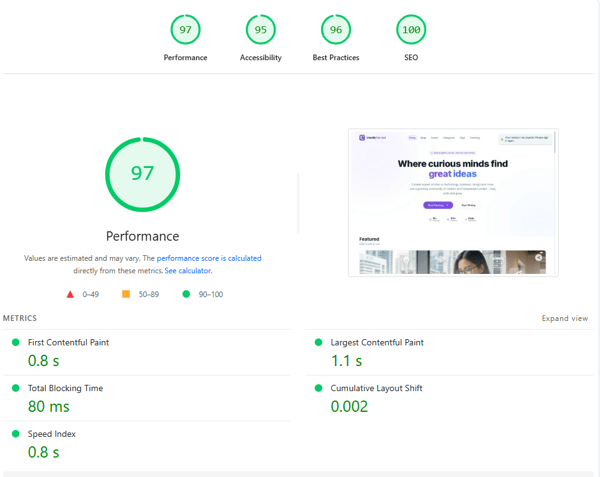
Go to pagespeed.web.dev right now and check your scores. The field data (real user numbers) matters more than the Lighthouse lab score. If you're below 50 on mobile, keep reading.
🔗Related Post:-Why Your Next.js App is Slow 5 Powerful Fixes to Boost Performance Fast
1. You're making everything a Client Component
This is the biggest mistake I see in 2026 Next.js codebases. When the App Router launched, the mental model shifted completely — but many developers are still writing their apps the old way.
Here's the problem: "use client" is contagious. The moment you put it at the top of a component, every component imported below it also becomes a Client Component. That means all that JavaScript gets shipped to the browser — even if it doesn't need to be.
Real-world impact
A common pattern I see: a developer puts
"use client"on a layout component that contains a nav, a sidebar, and the main content. Now the entire page is client-side rendered. A page that could have been mostly static HTML is now a 480KB JavaScript bundle.
The fix: push "use client" to the leaves
Server Components (the default in App Router) render on the server, send zero JavaScript to the browser, and are dramatically faster. Use them for anything that doesn't need browser APIs or user interactivity.
The rule is simple: only use "use client" when you actually need it — for useState, useEffect, event handlers, browser APIs like localStorage, or third-party libraries that require a browser environment.
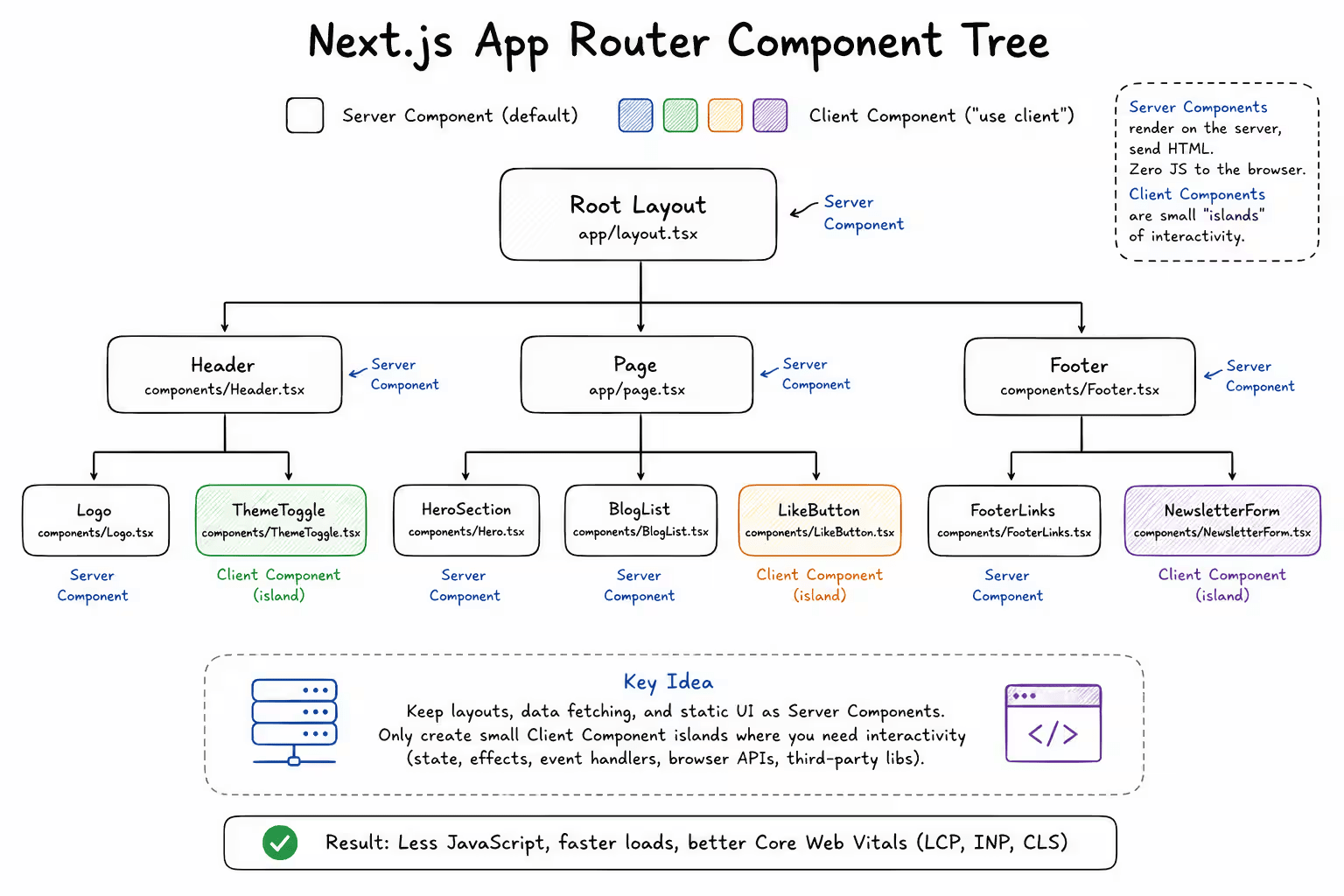
A good pattern is to keep your page layout as a Server Component, and only extract the interactive bits into small Client Components:
app/page.tsx — Server Component (default)
// No "use client" — this runs on the server
import { HeroSection } from './HeroSection'
import { BlogList } from './BlogList'
import { LikeButton } from './LikeButton' // This one is a Client Component

export default async function HomePage() {
  const posts = await fetchPosts() // Direct DB/API call, no useEffect needed

  return (
    <main>
      <HeroSection />
      <BlogList posts={posts} />
      <LikeButton /> // Small island of interactivity
    </main>
  )
}
components/LikeButton.tsx — Client Component
"use client"

import { useState } from 'react'

export function LikeButton() {
  const [liked, setLiked] = useState(false)
  return (
    <button onClick={() => setLiked(!liked)}>
      {liked ? '❤️ Liked' : '🤍 Like'}
    </button>
  )
}
This pattern — Server Component wrapping Client Component "islands" — is the core mental model of App Router. Getting this right alone can reduce your JavaScript bundle by 40–60%.
🔗Also Read:-Memory leak issues in Next.js
2. Your images are destroying your LCP score
LCP — Largest Contentful Paint — is almost always caused by images. Specifically, the largest image on your page (usually a hero image or a blog cover photo) needs to be visible within 2.5 seconds. Most Next.js apps fail this.
The irony is that Next.js has one of the best image optimization systems of any framework. It just requires you to actually use it correctly.
Mistake 1: using a regular <img> tag
A plain <img src="hero.jpg"> sends your original file — maybe a 2MB JPEG — straight to the browser. Next.js's <Image> component from next/image automatically converts images to WebP/AVIF, resizes them based on the screen, and lazy-loads images below the fold.
Mistake 2: not marking the hero image as priority
By default, next/image lazy-loads all images. That means your hero image — the biggest thing on the screen — waits until the browser decides to load it. This tanks your LCP. Fix it with one prop:
components/Hero.tsx
import Image from 'next/image'

export function Hero() {
  return (
    <Image
      src="/hero.jpg"
      alt="Hero image description"
      width={1200}
      height={600}
      priority // This tells Next.js to preload it — critical for LCP
      sizes="100vw"
    />
  )
}
Only use priority on the above-the-fold image. If you put it on every image, you undo the benefit.
Mistake 3: wrong sizes prop
Without a proper sizes prop, Next.js doesn't know how big your image will be on different screens, so it generates suboptimal srcsets. For a full-width hero: sizes="100vw". For a card in a 3-column grid: sizes="(max-width: 768px) 100vw, 33vw".
Quick win
Run
npx @next/codemod next-image-experimental .— it automatically migrates any leftover<img>tags in your project tonext/image. Takes about 30 seconds.
3. You're not caching anything (or you're caching everything)
Next.js App Router changed how caching works — and honestly, the documentation around it is confusing. A lot of developers either don't cache anything (so every request hits your database) or cache everything (so users see stale data for hours).
Here's a simple mental model for 2026:
Static data: use cache: 'force-cache'
For data that rarely changes — like your homepage content, category lists, or config — tell Next.js to cache it aggressively:
lib/data.ts
export async function getCategories() {
  const res = await fetch('https://api.yoursite.com/categories', {
    cache: 'force-cache', // Cache indefinitely, revalidate manually
    next: { tags: ['categories'] } // Lets you invalidate this specific cache later
  })
  return res.json()
}

export async function getBlogPosts() {
  const res = await fetch('https://api.yoursite.com/posts', {
    next: { revalidate: 3600 } // Refresh every 1 hour (ISR)
  })
  return res.json()
}
Dynamic data: use cache: 'no-store'
For data that must be real-time — like a user's cart, notifications, or live scores:
lib/user.ts
export async function getUserCart(userId: string) {
  const res = await fetch(`/api/cart/${userId}`, {
    cache: 'no-store' // Always fetch fresh — never cache
  })
  return res.json()
}
The performance impact of getting this right is enormous. A page that hits the database on every request can go from 800ms to 40ms response time when properly cached. That's not a small improvement — it's the difference between a good user experience and a frustrating one.
🔗Also Read:-Session Management in Next.js : A Simple Beginner Guide
4. Your fonts are blocking the page render
This one sounds small. It isn't. Font loading is one of the most common causes of a poor CLS score and a slow LCP. The user sees a flash of unstyled text (FOUT), then the layout jumps when the real font loads. Google penalises both.
The good news: next/font (introduced in Next.js 13) completely solves this. It downloads fonts at build time, self-hosts them on your domain, and automatically injects the correct font CSS with zero layout shift. Most developers still aren't using it.
The wrong way (still very common)
app/layout.tsx — DON'T do this
// This loads fonts from Google's servers at runtime
// It's slow, causes layout shift, and leaks user IPs to Google
export default function RootLayout({ children }) {
  return (
    <html>
      <head>
        <link rel="stylesheet" href="https://fonts.googleapis.com/css2?family=Inter" />
      </head>
      <body>{children}</body>
    </html>
  )
}
The right way
app/layout.tsx — DO this instead
import { DM_Sans, Lora } from 'next/font/google'

const sans = DM_Sans({
  subsets: ['latin'],
  variable: '--font-sans',
  display: 'swap', // Show fallback font immediately, swap when ready
})

const serif = Lora({
  subsets: ['latin'],
  variable: '--font-serif',
  display: 'swap',
})

export default function RootLayout({ children }) {
  return (
    <html className={`${sans.variable} ${serif.variable}`}>
      <body>{children}</body>
    </html>
  )
}
This approach self-hosts fonts, eliminates the external network request, adds font-display: swap automatically, and produces zero layout shift. It's one of those changes that takes 10 minutes and immediately shows up in your Core Web Vitals report.
5. You're loading a 300KB library for one function
Bundle size is the silent killer of Next.js performance. Every library you npm install adds weight to your JavaScript bundle. The problem is that most developers don't know how much weight until they actually measure it.
Common offenders I see in 2026 codebases:
moment.js — 230KB for date formatting. Use
date-fns(tree-shakeable) or nativeIntl.DateTimeFormatinstead.lodash (the full package) — 70KB. Import only what you need:
import debounce from 'lodash/debounce'notimport _ from 'lodash'.chart libraries — Recharts is 300KB+. If you only need one bar chart, consider a lightweight alternative like
uplotor just use CSS.icon libraries — importing the full
react-iconsorlucide-reactpackage. Always use named imports:import { Search } from 'lucide-react'.
How to find the problem
Run ANALYZE=true next build with the @next/bundle-analyzer package. This shows you a visual map of exactly what's in your bundle and how big each piece is. It's always eye-opening.
next.config.js
const withBundleAnalyzer = require('@next/bundle-analyzer')({
  enabled: process.env.ANALYZE === 'true',
})

module.exports = withBundleAnalyzer({
  // your existing next config
})
Dynamic imports for heavy components
If you genuinely need a large library (like a rich text editor or a chart library), use dynamic imports so it only loads when the user actually needs it:
components/Editor.tsx
import dynamic from 'next/dynamic'

// The editor only loads when this component mounts
// It's not included in the initial page bundle at all
const RichTextEditor = dynamic(() => import('./RichTextEditor'), {
  loading: () => <p>Loading editor...</p>,
  ssr: false, // Don't try to render this on the server
})
This pattern is especially useful for components that are below the fold, are only shown after user interaction (like a modal or a form), or use browser-only APIs.
🔗Also Read:-Why useEffect breaks in Next.js — and how to fix it (Step-by-Step Guide for Beginners)
Putting it all together: a quick audit checklist
Before you deploy your next Next.js app, run through this list:
✅ Are you only using
"use client"on components that genuinely need browser APIs or interactivity?✅ Is every above-the-fold image using
next/imagewith thepriorityprop?✅ Do your images have correct
sizesprops?✅ Are frequently-accessed API calls properly cached with
next: { revalidate }?✅ Are your fonts loaded via
next/fontinstead of a<link>tag?✅ Have you run bundle analysis and checked for heavy libraries?
✅ Are heavy components (editors, charts, maps) loaded with
dynamic()?
Test your real-world performance
Always test on a real mobile device on a real 4G connection — not just Lighthouse in Chrome DevTools. PageSpeed Insights shows you real-user data (CrUX) from your actual visitors, which is far more useful than a lab score. In India, test specifically on Jio 4G speeds — your users are probably on these networks.
The 5 fixes — quick recap
Fix 1: Push
"use client"to leaf components only. Default to Server Components.Fix 2: Use
next/imagewithpriorityon your hero image and correctsizesprops.Fix 3: Cache static data with
next: { revalidate }. Useno-storeonly for truly dynamic data.Fix 4: Replace Google Fonts
<link>tags withnext/font/google.Fix 5: Audit your bundle with
@next/bundle-analyzer. Usedynamic()for heavy components.
Performance isn't a one-time fix — it's something you build into your development habits. The good news is that Next.js gives you all the tools you need. You just have to actually use them.
If you found this useful, the next post in this series covers how to properly set up ISR (Incremental Static Regeneration) in the App Router — which is one of the most powerful and misunderstood features in Next.js right now.
Have questions or something to add? Drop a comment below or reach out on UsuallyCorrect. Found a mistake? Even better — we're usually correct, not always.