Intro: New Email, Who Dis?

So yeah… if you’re still using that old embarrassing Gmail 👀, it’s time for a glow-up.
The good news? You can change your old Gmail Address to a new one without losing data (kinda 😏).

Let’s break it down in the easiest way possible.


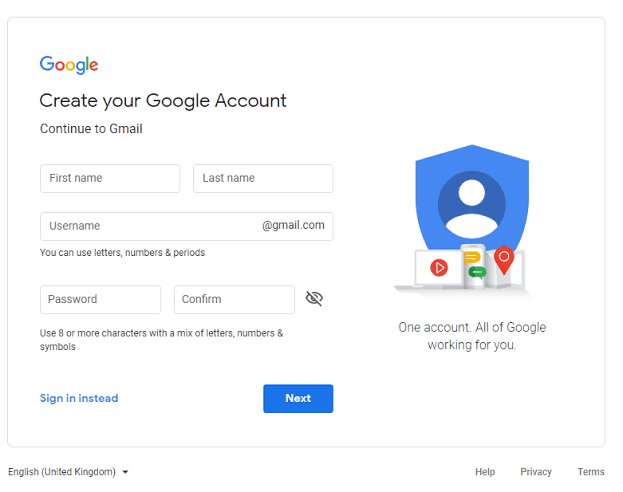
🚀 Step 1: Create Your New Gmail (Fresh Start Energy)
https://i.insider.com/63c8097ceee94d001a78c9b9?auto=webp&format=jpeg&width=800https://static.wingify.com/gcp/uploads/sites/3/2020/01/example-of-the-sign-up-form-for-a-Google-Account-.pnghttps://www.lifewire.com/thmb/wGDHuvQ7MYVgBgcx1KhzQ01WYOQ%3D/1500x0/filters%3Ano_upscale%28%29%3Amax_bytes%28150000%29%3Astrip_icc%28%29/ScreenShot2020-02-18at9.23.09AM-29ce856c0c6a4b9b937bb2d1c049f006.jpg

4

First things first — make your new email.

💡 Tips:

  • Keep it clean & professional

  • Avoid numbers like 123456 😭

  • Think long-term (job, college, etc.)


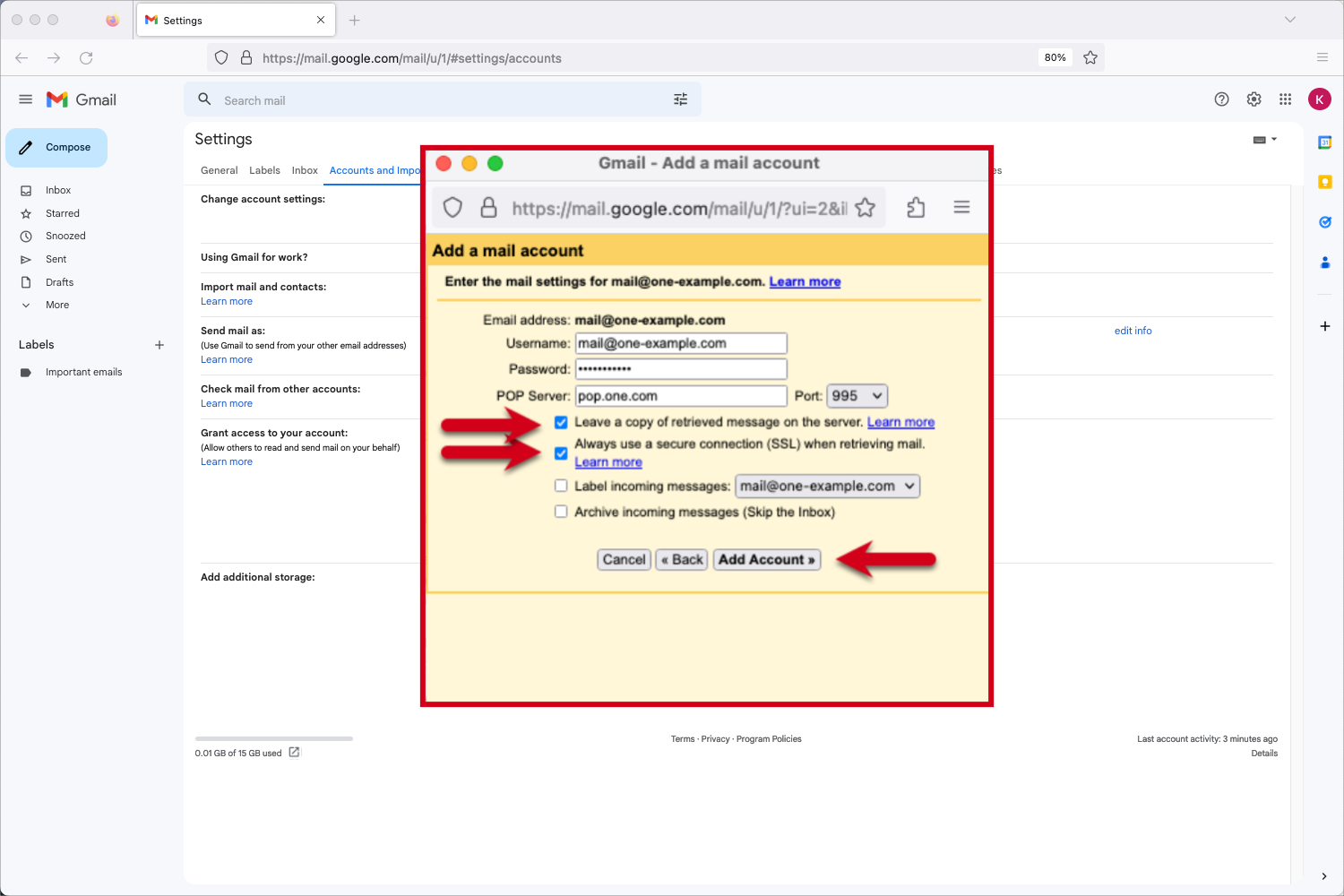
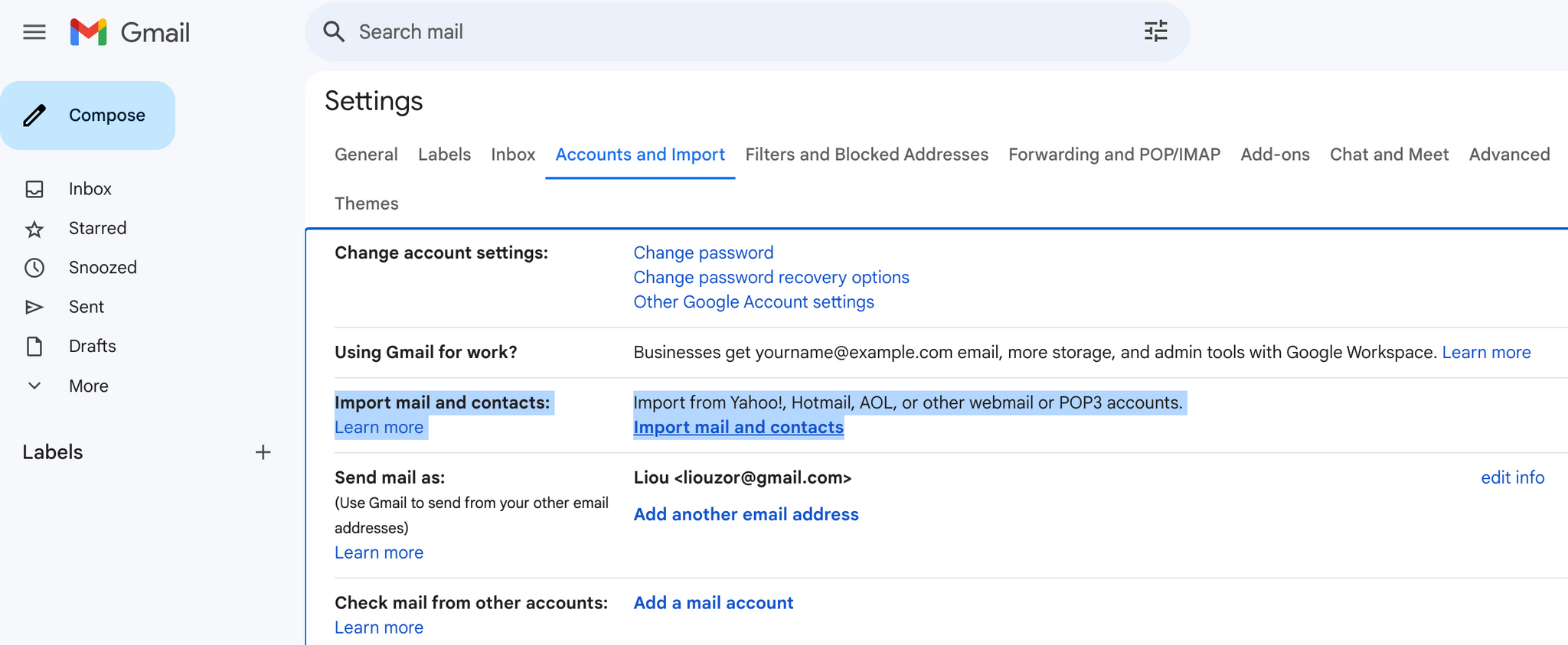
🔄 Step 2: Transfer Your Old Emails
https://onescales.com/cdn/shop/articles/Screenshot_2024-08-13_at_12.11.42_PM_2048x.png?v=1723522316https://cdn.prod.website-files.com/645379b2f2b2154072180a98/6454c4baa1a2ca599c5704aa_How-transfer-email-To-Gmail-3.pnghttps://www.cloudservices.store/cp/images/kb/1_addaccountserver.png

4

You don’t have to lose your emails 👏

👉 Go to:

  • Settings → Accounts → Import Mail and Contacts

This pulls all your old emails into your new inbox. Easy.


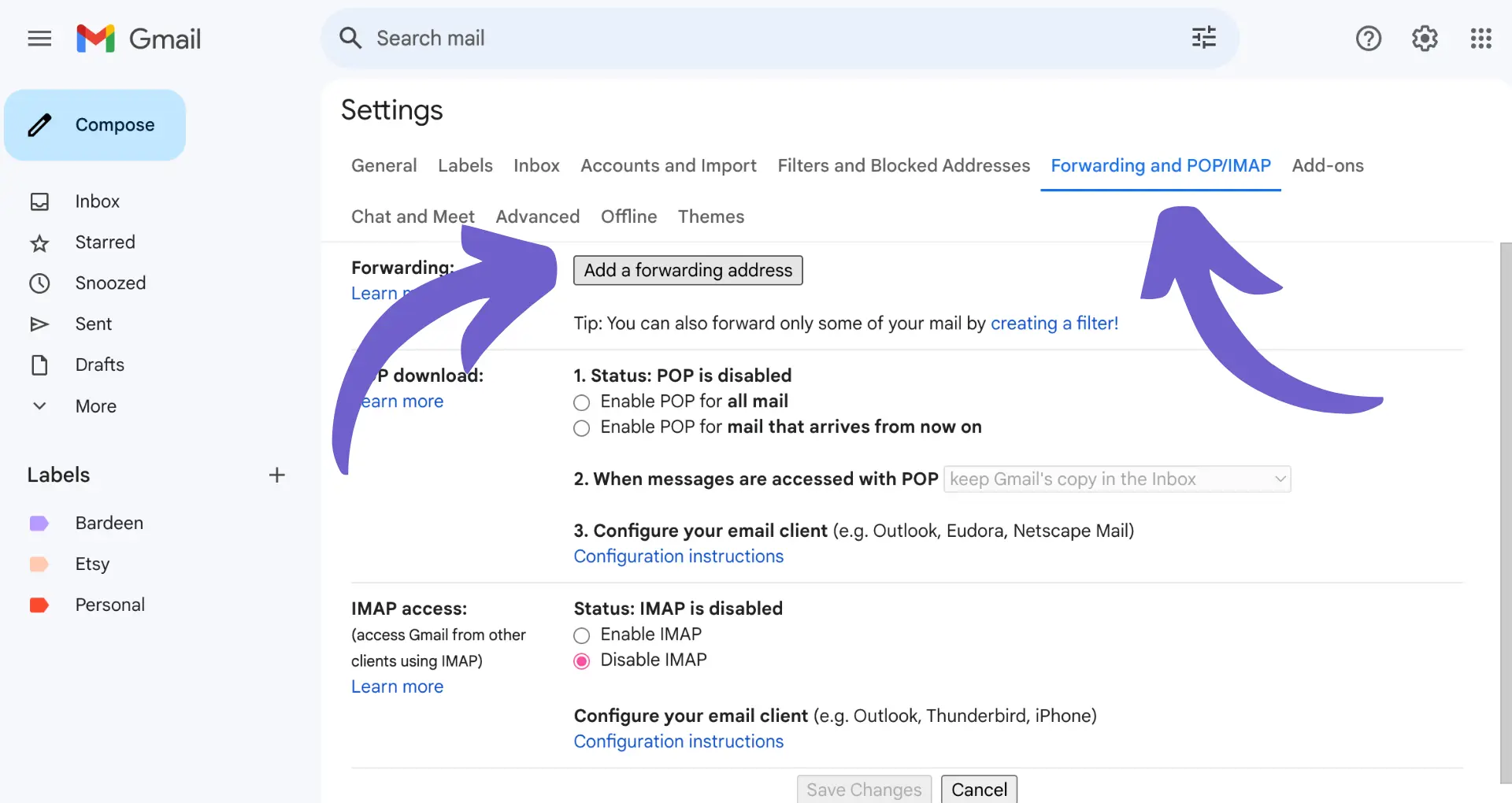
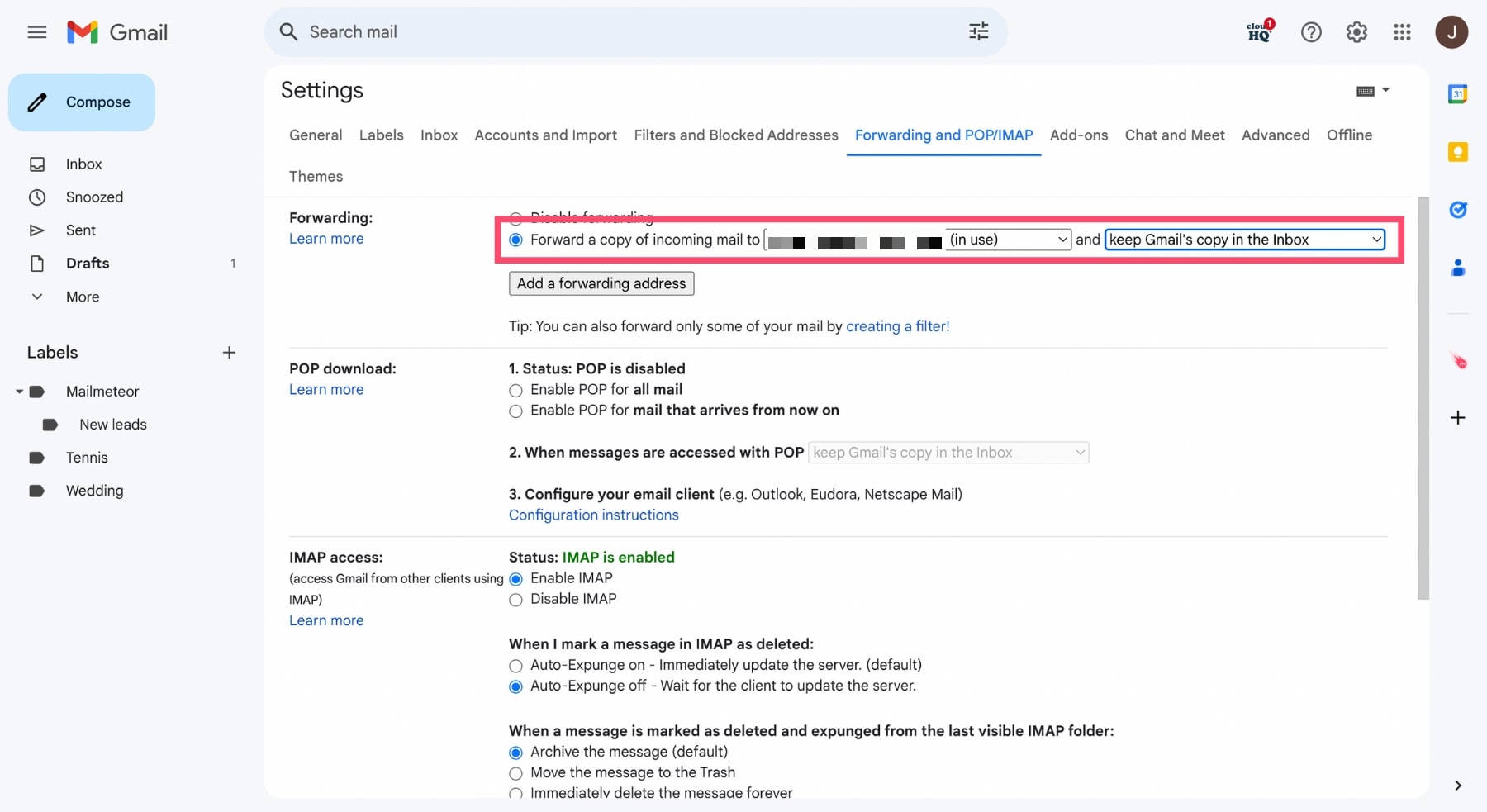
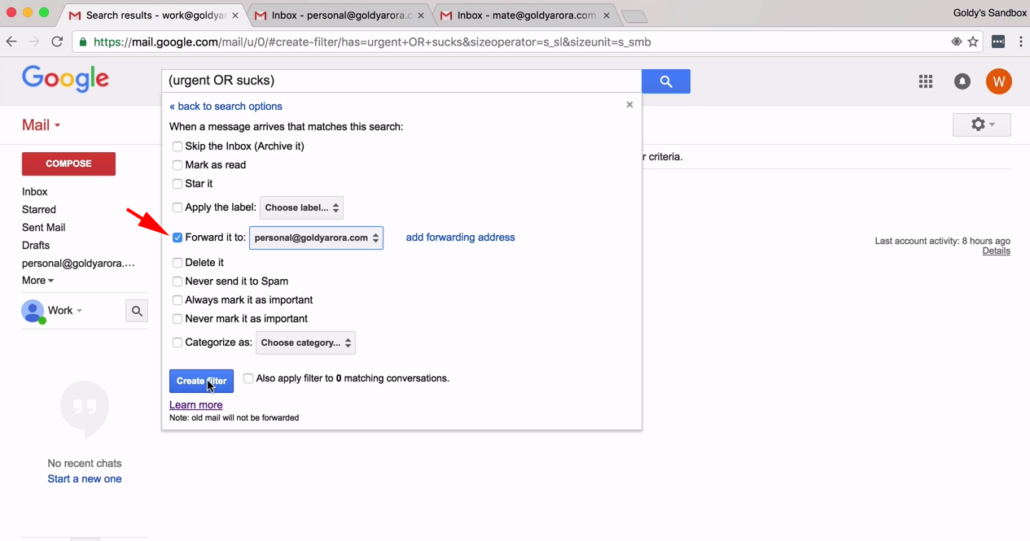
📩 Step 3: Set Up Email Forwarding (Stay Connected)
https://cdn.prod.website-files.com/652583d059964c2e9f5a207f/652b5b81b62af154c4f1a948_filter-configurations-gmail-1030x541.pnghttps://cdn.prod.website-files.com/68de64a5121739ae493c912e/68f8fa915293fc321965c5d4_66d8e510155ddd88c8eb328f_gmail_%2525282%252529.webphttps://assets.mailmeteor.com/blog/how-to-forward-email-in-gmail/forward-a-copy-of-incoming-mail.jpg

4

Don’t miss important emails!

👉 In your old Gmail:

  • Settings → Forwarding → Add new email

Now everything gets sent to your new account 🔥


📂 Step 4: Move Your Contacts & Files

https://sais.org/app/uploads/2023/06/google-contacts-export.jpghttps://cdn.prod.website-files.com/680a93d128c5b2a854b57c98/68ba0a724aae2784ac7641b2_65ec388279b09aa250566245_0kYCbgBwF3pAEE5gmzQye5KZro2hQAGgXWxu1kYpw-XgtwWUSusbUmlwTrAFiv78tfW6Q0aNwXyqUsjrC1selYVTIVM3fk3_18Ftf33_FE7YAf0xjJTxoHkf3fsX_ajE49lXbMm6jH-oEE77KtP4Ef4.pnghttps://images.prismic.io/sysblog/58828695-02aa-4af2-a506-0ab2cd8679f6_Image%2B2%2Btransfer%2Bgoogle%2Bdrive%2Bfiles%2Bto%2Banother%2Baccount-%2Bupload%2Bfiles%2Bor%2Bfolder.png?auto=compress%2Cformat

4

Let’s not lose your people or files 😌

✔ Export contacts → Import to new Gmail
✔ Share Google Drive files with your new account
✔ Transfer ownership if needed


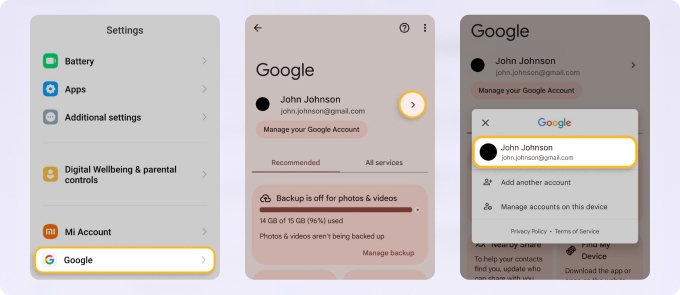
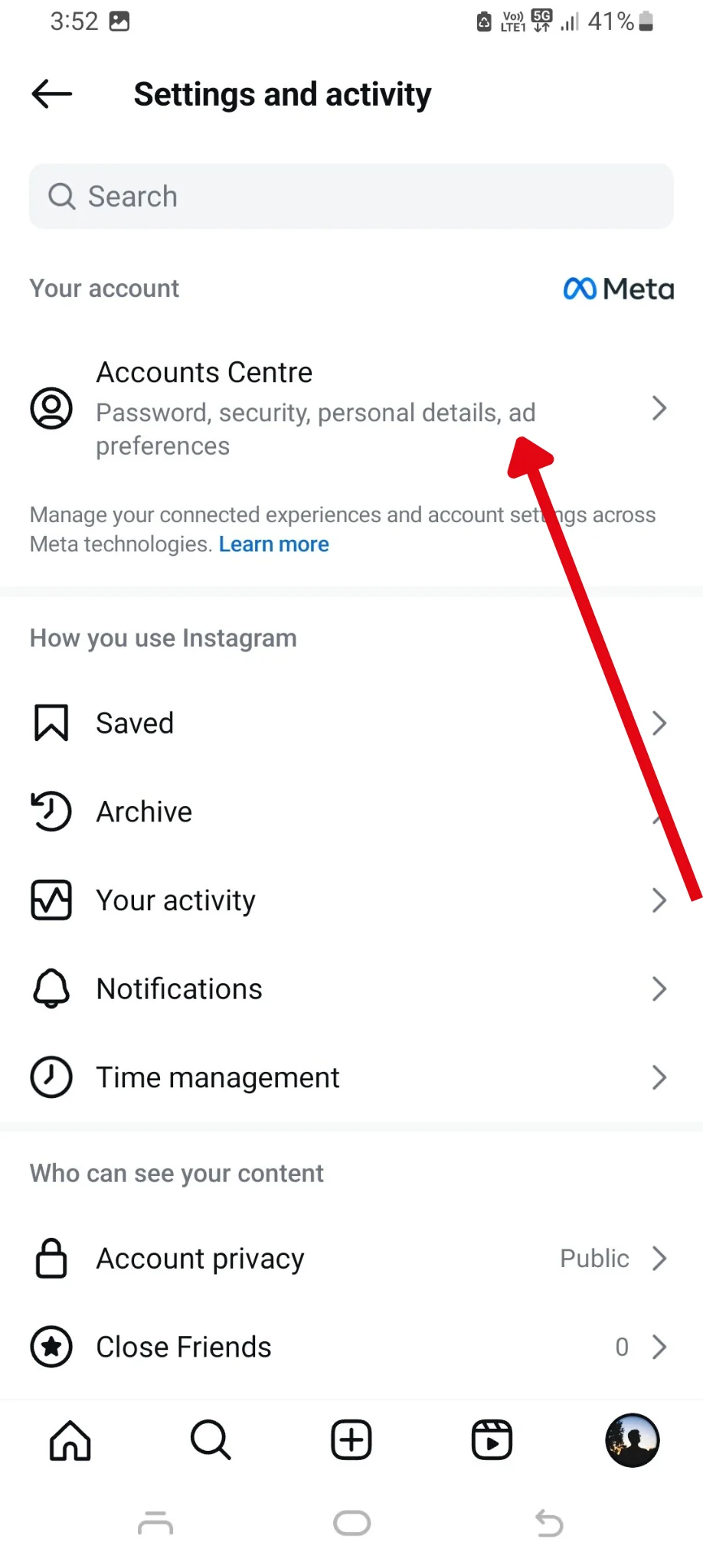
🔗 Step 5: Update All Your Accounts
https://website-assets.vidyo.ai/Mobile%20Instagram%20Change%20Email2.webphttps://s3.amazonaws.com/prod-cdata-secure.sprinklr.com/DAM/3877/7ff4dfa1-88d1-4722-b6dd-9546b50940db-1831022685/ui-abstraction-security-email-.webp?X-Amz-Algorithm=AWS4-HMAC-SHA256&X-Amz-Credential=ASIA4U2SW3Y5OH4THYTO%2F20260406%2Fus-east-1%2Fs3%2Faws4_request&X-Amz-Date=20260406T163401Z&X-Amz-Expires=1800&X-Amz-Security-Token=IQoJb3JpZ2luX2VjEAgaCXVzLWVhc3QtMSJHMEUCIAXPGHka7WFTr%2FKJAQ40WmllZCaO%2FSEnlkgscB7fzNu0AiEAwWvRbHscpPyGa3%2BnpQheuh4Z0LF9%2F1aKoqAzigIpud0qugUI0f%2F%2F%2F%2F%2F%2F%2F%2F%2F%2FARAAGgw4NjkzNjc0NzE2NzQiDLbiAGlzaouxwCKFIyqOBQFp7MrfxEAX1K3FFYzBSzpvI6NZMU02gFxDfIe00nWca%2FpcFyEtbowraZiqUP84yZvupM64f4x7LSTa%2FUVhcaNLMuphNIIqZQGm%2BfaAqfH%2BDgL2dIbHanVDkfggjkKWrfBn%2BShLI6RsyewxwhRTr7pes2H0qrBePC%2BUvwd%2F9Kan5Mx2WoT7iiI6VIOUd57YeovSAcbbwAa06Y3sDVft29LZbSb9o4udap%2B5s%2BJCCL3h%2FCxPIGONpK7XOTMEDcxyA3g9fbC6TvzViN0X%2F7lpRQc7OM3cyJd6DB%2FMyCmDbzhohJCsxrv8mf9tDqY0mo5Dptc0bmgLToAyWFPkGr%2BTwvSHsdPfI2tf2z%2FxnBdb3oFIxBqUQIM73v0M2Ed2A4O70pEQpsgHAkpmgr7B8A%2FuMuM06krHI6cYPbMNtTTRI1fiMv5OI0KYPIh9I9ZfGWebkcOTbkSZFDLzlUjMCCNa1v%2FR9F83wzPqd7IOH0GuAGVWGxndCPOjLIPDjQsfVsGQrfXenk9Ke0kUvxYDv%2BJvanx%2FFpZ95c4FZptSoViS3nluynUp0d4wPdcgeTjbAMbzilZjZtAlecUZirsxVgyadGmj1OdgXVNlVJh1EjR4OqmFArTDhI4eQMiPZrPDGwzs255nCpXpR%2FCFLpW0bL26AR%2Fv0MqmH88rA6%2F7%2B4QTM8oztXlaETMGHFZqRaQXWEjddzRZ0MVFUgOsH7%2FFwzLzYSNxcSDhsQ4gEs5CTEGEfmuwHoeJS3Zwo8M7XmQjsYf9GtRyosdiAE6XlV0ySu3edjRtoY7oPwlsF%2F7fitWfkRle0KsX1mYZPu0%2Bwntpbsg92E5YHSUFmF6eSS1VzbffhXkEBXGt4X5PT3MiHs4RhzCGqM%2FOBjqxAWcxayp28fRvaIPb6ueWjbzbA9KxiMiO65keA9Ij4TaRTV1EBJ6hndzt9v%2BfXev7WXxWTvLTIudzGhGq25dt0n3YJ0CcAF982J7UGMxmNGd5bgCEDDvZoDNVkhSem1BUvNui9LlXJB%2FvdXKjHcdFWhx%2FYSa%2Btrxelm9ClzWelF6K1q6QkvbangnMpvrnqfWsXruUMtRNfh%2BuPbWMDJRWik6GVchec0SnlzI3Er%2FN9MKY6A%3D%3D&X-Amz-Signature=0415aad4623dedf879a2837781f5597d07b3082af06254deda4532ab4c2516ff&X-Amz-SignedHeaders=hosthttps://clean.email/user/pages/create-a-new-gmail-account/how-to-change-default-google-account/manage-accounts.jpg

Yeah… this part is annoying 😩

Update your email on:

  • Social media

  • Subscriptions

  • School/work platforms

But trust — it’s worth it.


Pro Tips (Don’t Mess This Up)

  • Keep your old Gmail for backup 🛟

  • Add auto-reply: “Hey, new email here 👉 [your new one]”

  • Don’t rush deleting your old account

  • Double-check important accounts are updated


FAQs (Quick Answers for SEO Boost)

1. Can I directly rename my Gmail address?
Nope. You need to create a new one and transfer data.

2. Will I lose my emails?
No, you can import and forward everything.

3. How long does transfer take?
Usually a few hours to 2 days max.

4. What about Google Drive files?
Just share or transfer ownership to your new email.

5. Is email forwarding safe?
Yes, it’s built into Gmail and secure.

6. Should I delete my old Gmail?
Not recommended. Keep it as backup.


🎯 Final Thoughts

Changing your email used to be stressful… but now? It’s just a process.

Follow these steps and you can change your old Gmail Address to a new one without losing data like a pro 💻✨

New email = new vibe 😎


🔗 Helpful Resource

Check Google’s official guide:
👉 https://support.google.com/mail/